# Unique URL Link per Recipient

## Method 1: Unique link couched in a word

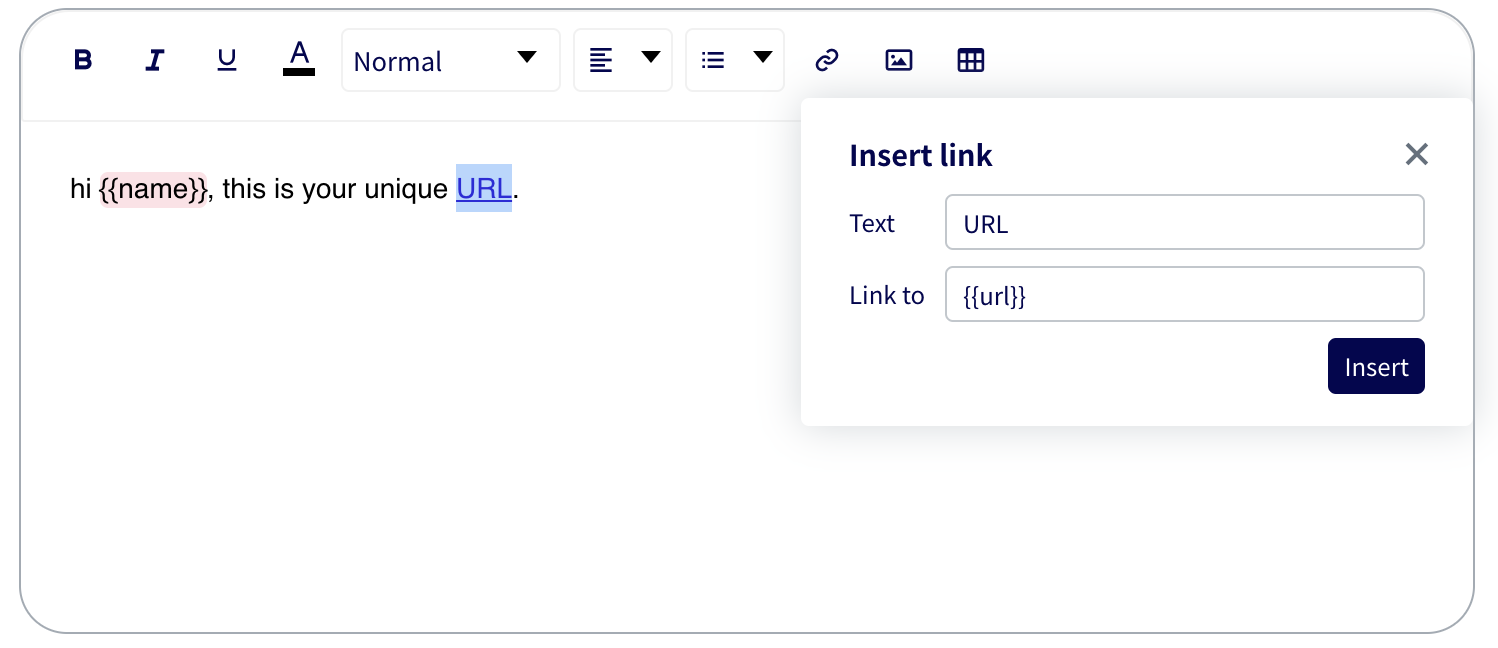
1. Highlight the word/phrase that you want hyperlinked, and click the "Insert link" icon.
2. In the "Link to" field, type in `{{url}}`.

<figure><img src="https://4126954886-files.gitbook.io/~/files/v0/b/gitbook-x-prod.appspot.com/o/spaces%2F-MAQH3DF49Lq0AJudrbF%2Fuploads%2Fgit-blob-764275892ecbc9ef644cb6cb569da5d1c68dab66%2FScreenshot%202022-11-08%20at%205.03.37%20PM.png?alt=media" alt=""><figcaption></figcaption></figure>

3\. In your CSV Recipient list, include a column with the header `url`. Fields under this column must begin with `https://`

<figure><img src="https://4126954886-files.gitbook.io/~/files/v0/b/gitbook-x-prod.appspot.com/o/spaces%2F-MAQH3DF49Lq0AJudrbF%2Fuploads%2Fgit-blob-c1fefe86172628163e526b3bec9171946d223950%2FScreenshot%202022-11-08%20at%205.07.09%20PM.png?alt=media" alt=""><figcaption></figcaption></figure>

##

## Method 2: Unique link is displayed in full (also possible for SMS)

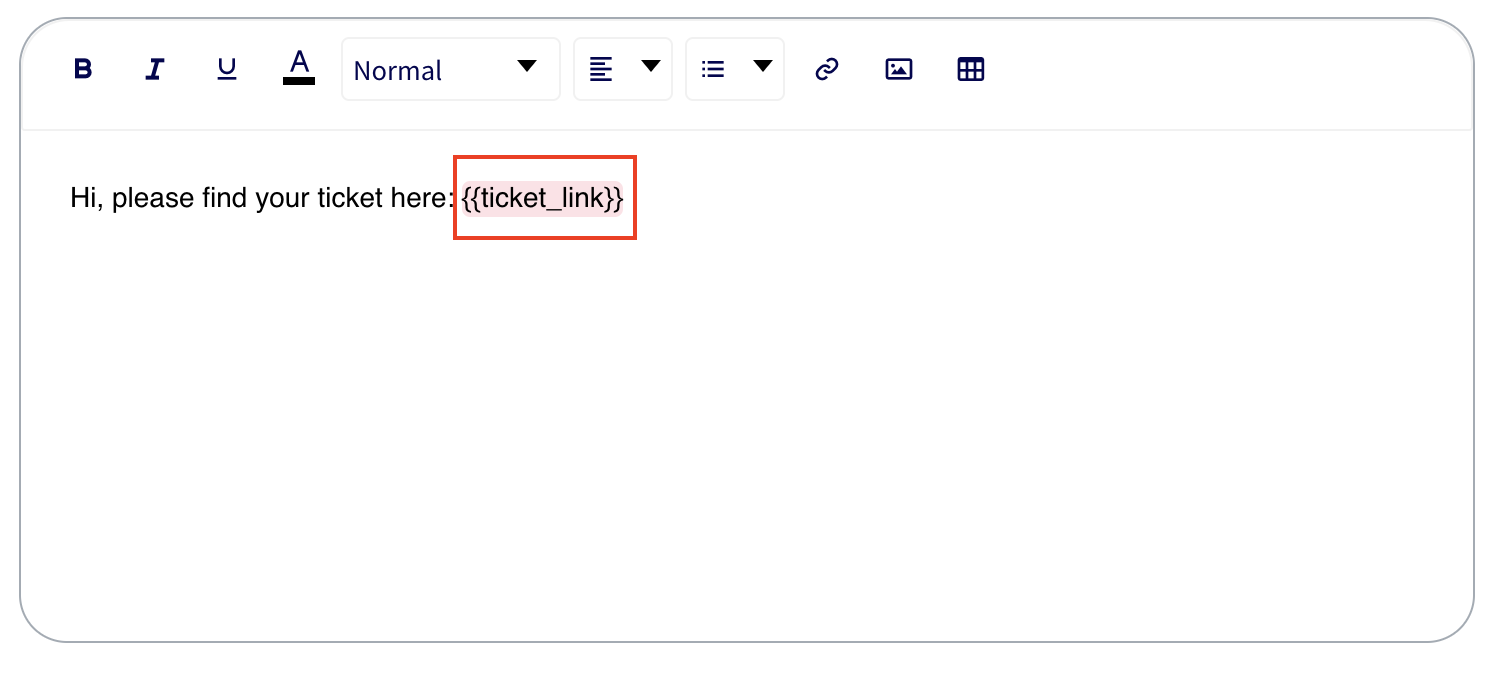
1. In the message template, write your variable field as `{{xxx_link}}`. You can fill in the first word with any word you want, as long as it is followed by `_link`. For example:

<figure><img src="https://4126954886-files.gitbook.io/~/files/v0/b/gitbook-x-prod.appspot.com/o/spaces%2F-MAQH3DF49Lq0AJudrbF%2Fuploads%2Fgit-blob-cc8ad7d1d92914c3a71b84180d7fdf2df0ca3aba%2FScreenshot%202022-11-08%20at%206.06.33%20PM.png?alt=media" alt=""><figcaption></figcaption></figure>

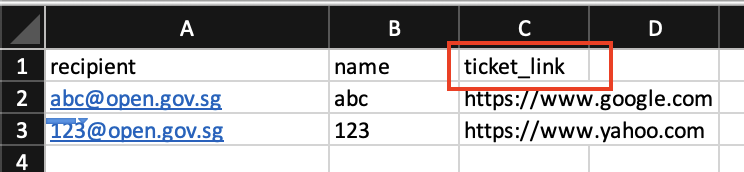
2\. In your CSV file, the header must also follow this naming convention i.e. `xxx_link`

<figure><img src="https://4126954886-files.gitbook.io/~/files/v0/b/gitbook-x-prod.appspot.com/o/spaces%2F-MAQH3DF49Lq0AJudrbF%2Fuploads%2Fgit-blob-e41907471706598e94ae9470a42a35d4068c54a7%2FScreenshot%202022-11-08%20at%206.10.31%20PM.png?alt=media" alt=""><figcaption></figcaption></figure>

By following these steps, the full link will appear in the message that your recipient receives.