# Formatting your Message Template
We support
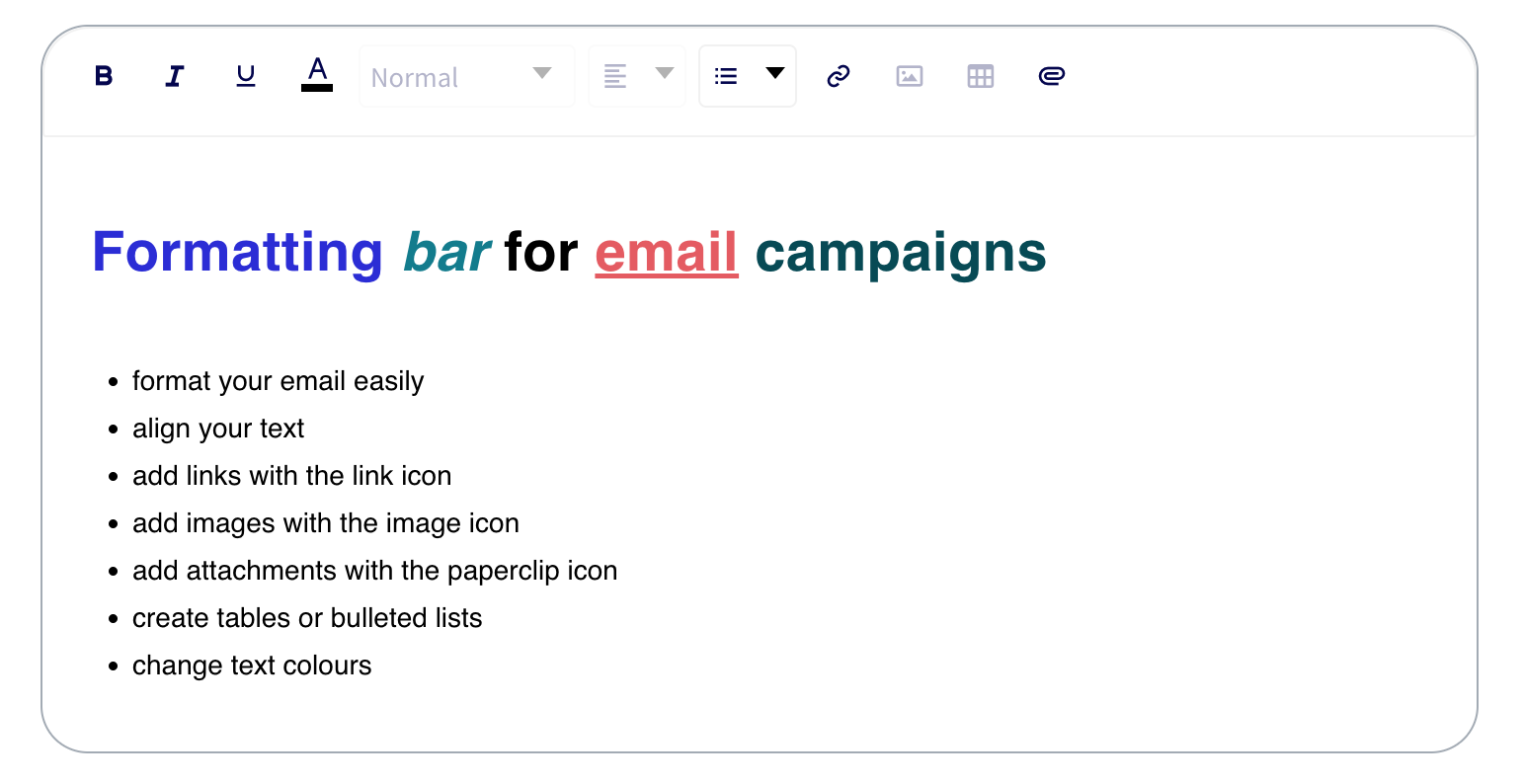
1. Bold, italic, underline
2. Colour
3. Title, subtitle, header, and normal text
4. Left, right, center alignment of text
5. Bullet and number list
6. Link insertion
* Use the link icon in the formatting bar.
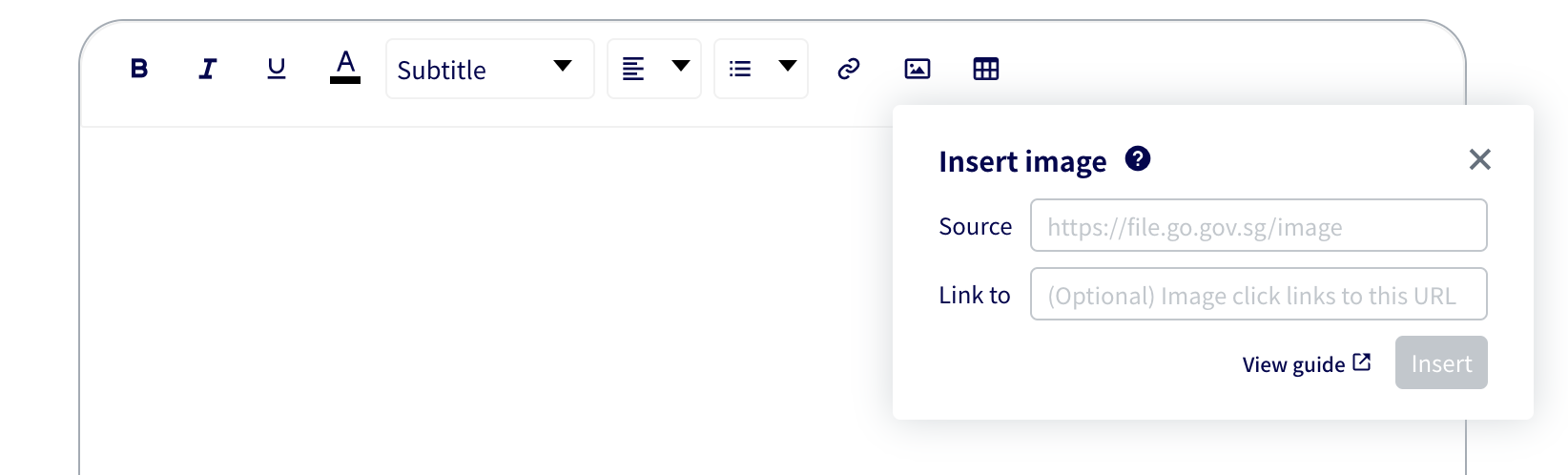
7. Image insertion through [GoGovSG](https://go.gov.sg/#/) (for all public service officers except for those from healthcare institutions and schools) or [ForEduSG](https://for.edu.sg/#/) (for officers from schools) or [ForSG](https://for.sg/#/) (for officers from healthcare institutions).
8. Simple tables can be created using the table icon in the formatting bar.
{% hint style="info" %}
You can use [GoGovSG](https://go.gov.sg/#/) or [ForEduSG](https://for.edu.sg/#/) or [ForSG](https://for.sg/#/) (this depends on your agency - see point 7 above) to upload your image file and add it to the content of your email using the image icon. Remember to copy the `https://file.go.gov.sg/image_name.png` or `https://file.for.sg/image_name.jpeg` links and not the `https://go.gov.sg/image_name` `https://for.sg/image_name` links
{% endhint %}

## Embedding an Image in Email
You can use [GoGovSG](https://go.gov.sg/#/) (for all public service officers except for those from healthcare institutions and schools) or [ForEduSG](https://for.edu.sg/#/) (for officers from schools) or [ForSG](https://for.sg/#/) (for officers from healthcare institutions) to embed an image in Postman's template.
Go to [GoGovSG](https://go.gov.sg/#/) or [ForEduSG](https://for.edu.sg/#/) or [ForSG](https://for.sg/#/) and log in using your official institution email address. Select `create new link` from file and upload your image.

Copy the shortened link into a new browser window. Copy the `file.go.gov.sg` link or `file.for.edu.sg` or`file.for.sg` into your Postman template by using the html tag shown below. The link that you paste into your Postman template should begin with *https\://*...

Then, in your campaign template, click on the image icon and paste your `file.go.gov.sg` link or `file.for.edu.sg` or`file.for.sg` link into the "Source" field, then click "insert". Your image will then appear in the template box, and you can resize it by 50%, 75% or 100%.